Module 2 · Level 1 · 15 min
The 🛟 folder, set up once for good
TabTree has no server, so it syncs the way you already sync files: it writes every map, as it changes, into one folder you choose. Put that folder inside the drive you already pay for, and your library follows you to every machine.
The app asks you this on day one
The first time you open TabTree, it stops and poses the question itself — and it poses it better than we could:
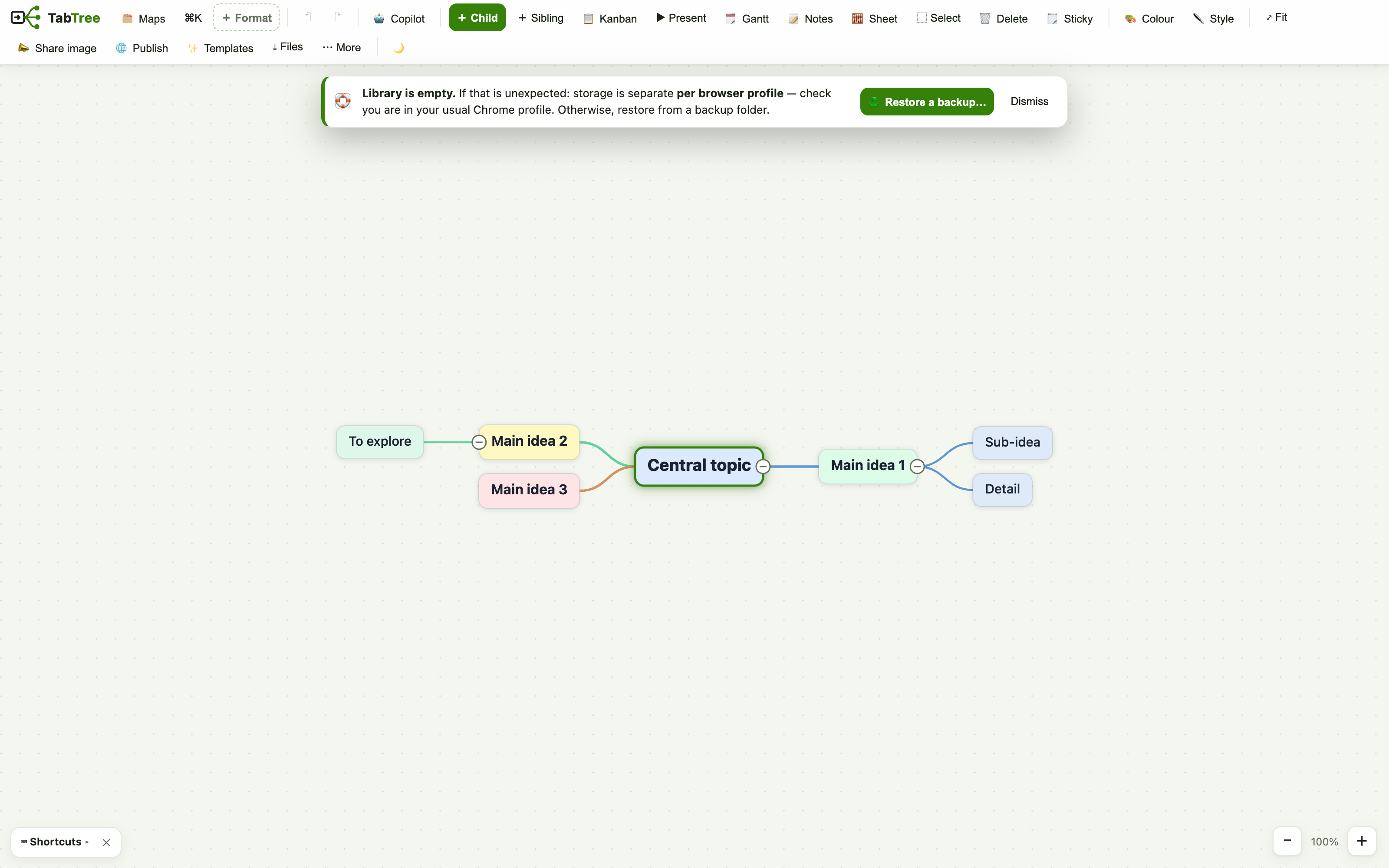
Clicking Choose a folder… there is the whole module. If you skipped it — which is fine, the reminder comes back until a folder is set — the rest of this page is how to do it deliberately.
Why a folder, and not an account
Most tools solve “my work on every device” by keeping your documents on their server.
That is what forces an account, and then a subscription, and then the day they change their
pricing. TabTree writes one .tabtree file per map into a folder on your
disk, and lets iCloud Drive, OneDrive, Dropbox, Google Drive or Syncthing do what they
already do well.
The consequence worth internalising: your browser keeps a separate library per
address. Maps you make in the app at tabtree.app live there; maps you make
in the downloaded file live with the file. Neither is lost — they are two shelves. The
folder is the bridge between shelves, and between machines.
On your first machine
- In the library, click 🛟 Keep my maps on my computer — the app's own words for it are “copy every map into a folder on your disk, so they survive this browser”.
- Pick, or create, a folder inside your synced drive. Something like
iCloud Drive/TabTreeorOneDrive/TabTree. A folder next to your drive rather than inside it will look identical and sync nothing — this is the one step where people go wrong. - When the browser asks for access, choose Allow on every visit. If that option is missing, you are in a plain tab rather than the installed app — see the note below.
That is the whole setup. Every map is written there from now on, and rewritten on every change.
To change the folder later, or to check which one is in use: ⚙️ Settings → 🛟 Backup → 📂 Choose / change the folder…
What you will find in the folder
One file per map, named after it, plus a Corbeille/ folder that keeps
deleted maps. You can open, copy, back up or email these files like any other file — this
is the point of the product.
On your second machine
- Wait for your drive to finish syncing the folder. The icon in your menu bar or system tray tells you when it is done — starting before that is how you end up with two half-libraries.
- Open TabTree there and point it at the same folder — either with 🛟 Keep my maps on my computer again, or with ♻️ Restore, which exists for exactly this and says so: “rebuild the library from a backup folder”.
- Your library arrives on its own: 🛟 N map(s) imported from this folder
The same three steps work for the downloaded file, for another browser, and for a second browser profile. Anywhere you can reach the folder, you can reach your maps.
Day to day, there is nothing to do
TabTree catches up when it starts and when you come back to its window: 🛟 1 map(s) updated from the folder
One honest limitation
Writing into a folder is a Chromium capability. Use Chrome, Edge, Brave or Arc.
On Firefox and Safari the 🛟 button does not fail silently — it explains the fallback: save
and open .tabtree files by hand.
| Browser | The 🛟 folder | What you do instead |
|---|---|---|
| Chrome, Edge, Brave, Arc | Yes | Nothing — this module |
| Firefox, Safari | No | Save and open .tabtree files manually |
Your turn
Set the folder on the machine you use most, then open TabTree somewhere else — a second computer, the downloaded file, or simply a different browser profile — and point it at the same folder.
You are done when you see the import toast and your maps are there. That toast is the whole exercise: it is the app telling you your library is no longer tied to one machine.